
3 Ways to Fix Delayed Telegram Message Notifications on iPhone
Sumukh has a knack for simplifying tech for the masses and helping consumers pick the right gadgets with his in-depth insights and reviews. He decided to hide his engineering degree in the closet to pursue his passion for writing. Over the past 6 years, he has contributed with guides, reviews, and detailed opinions to notable publications like TechPP and XDA-Developers – before donning the Editor hat at Guiding Tech Media. Learn about our Tech Review Board
Updated September 4, 2024 Reviewed & Updated by Aman Kumar
Subscriber
Aman is a Windows specialist and loves writing about the Windows ecosystem on Guiding Tech and MakeUseOf. He has a Bachelor’s in Information Technology and is now a full-time freelance writer with expertise in Windows, iOS, and browsers. Learn about our Tech Review Board
- If you’re experiencing a delay in Telegram notifications, ensure you have a stable and strong internet connection.
- Try toggling airplane mode and see if that fixes the problem.
- Ensure the Telegram app is open in the background so you get notifications promptly.
Try These Things First
- Disable Low Data Mode: The first thing to do is turn off Low Data Mode on your iPhone. This is because it can prevent apps from syncing in the background, which can lead to delayed Telegram notifications.
- Disable Low Power Mode: Similar to Low Data Mode, Low Power Mode also restricts background activity and data use to conserve battery life. Therefore, you must turn it off if you’re experiencing delays with Telegram notifications.
- Update or reinstall Telegram: The problem can also occur due to a bug in the Telegram version you’re using. In this case, consider updating the Telegram app. If updating the app wasn’t helpful, consider reinstalling the app.
Fix 1: Reset Notifications Settings in Telegram
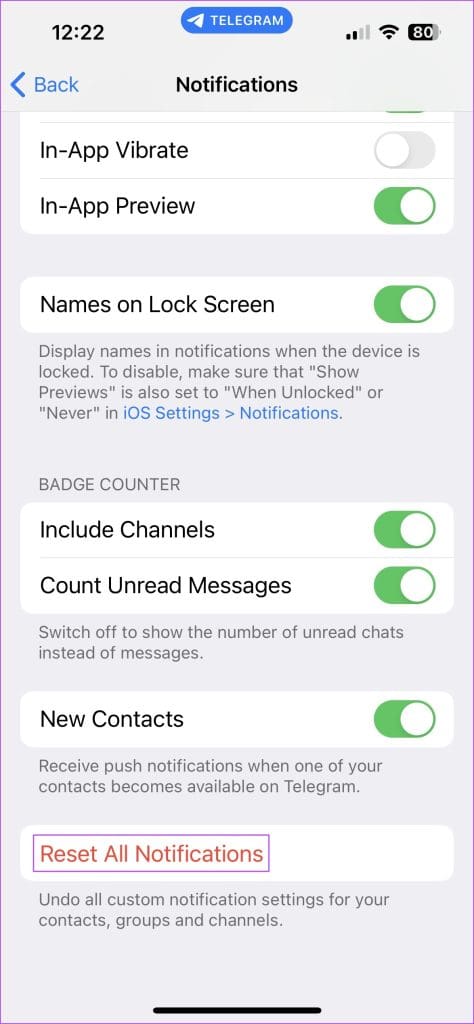
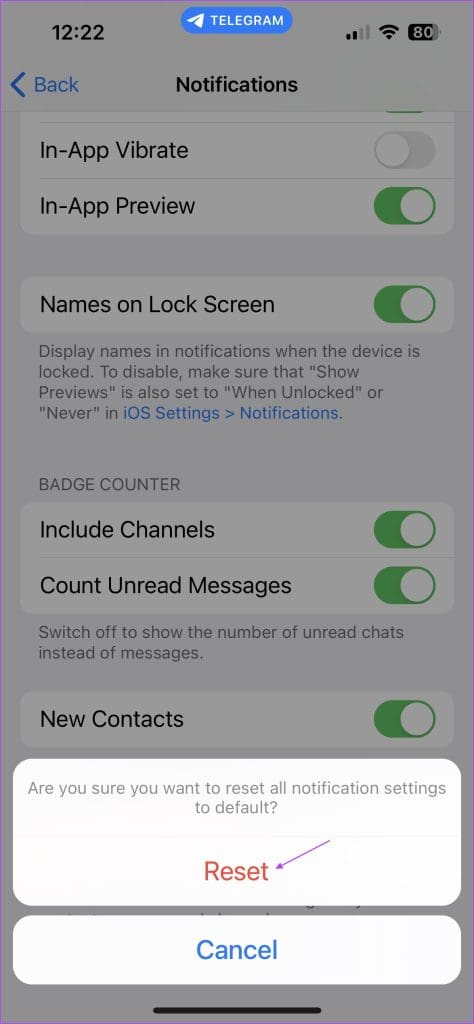
The Telegram app on iOS lets you reset your notifications preferences via the in-app Settings. That’ll change all your preferences about notifications of messages from individuals, groups, and channels to default. Here’s how to do it.
Step 1: Open the Telegram app on your iPhone and tap on Settings at the bottom.
Step 2: Select the Notifications and Sounds option.
Step 3: Tap Reset All Notifications.
Step 4: Select the Reset option once again when prompted.

Fix 2: Enable Background Refresh for Telegram
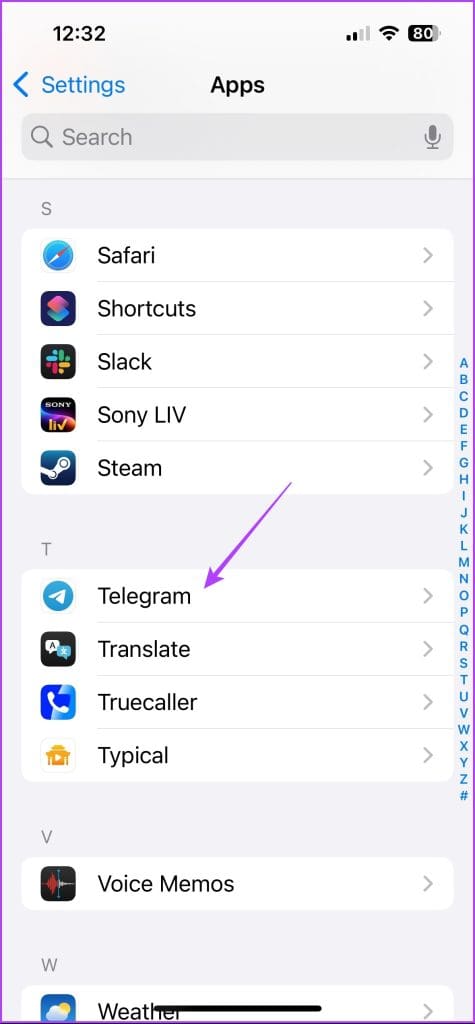
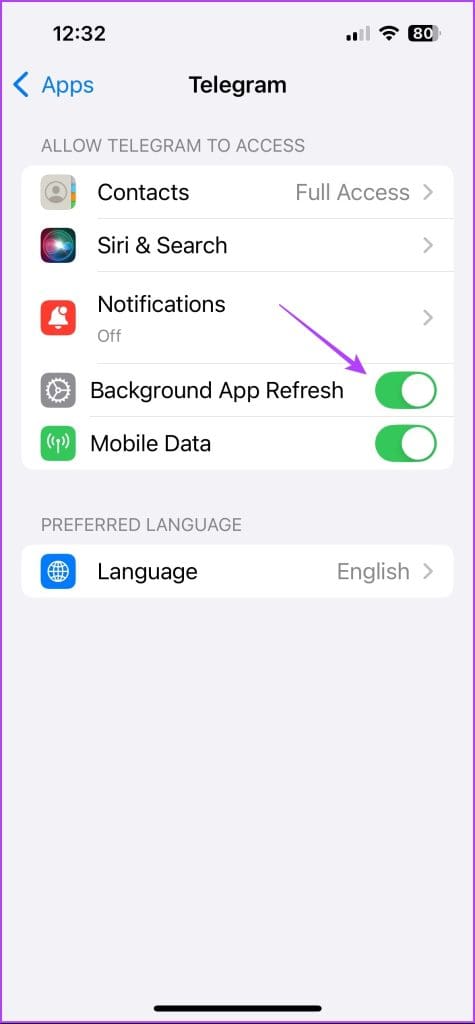
iOS gives you an option to allow apps to refresh in the background. This helps apps push instant notifications even when you’re not actively using them, which is paramount for a messaging app like Telegram. Here’s how to enable background app refresh for Telegram on your iPhone.
Step 1: Open the Settings app on your iPhone and choose Telegram.
Step 2: Enable the toggle for Background App Refresh.
Fix 3: Reset Network Settings
The problem can also occur due to the misconfigured network settings of your iPhone. In this case, you can reset the network settings to fix the problem. Here’s how:
Step 1: Open the Settings app and choose General.
Step 2: Select Transfer or Reset iPhone.
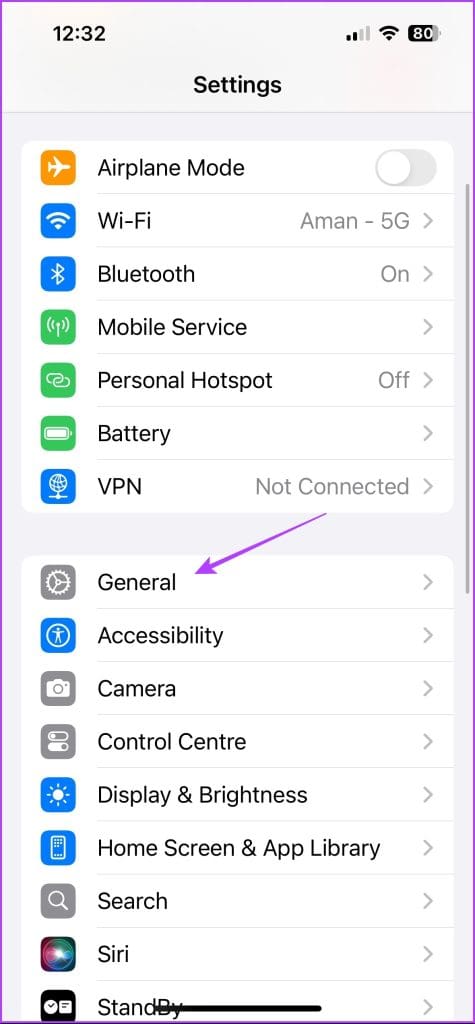
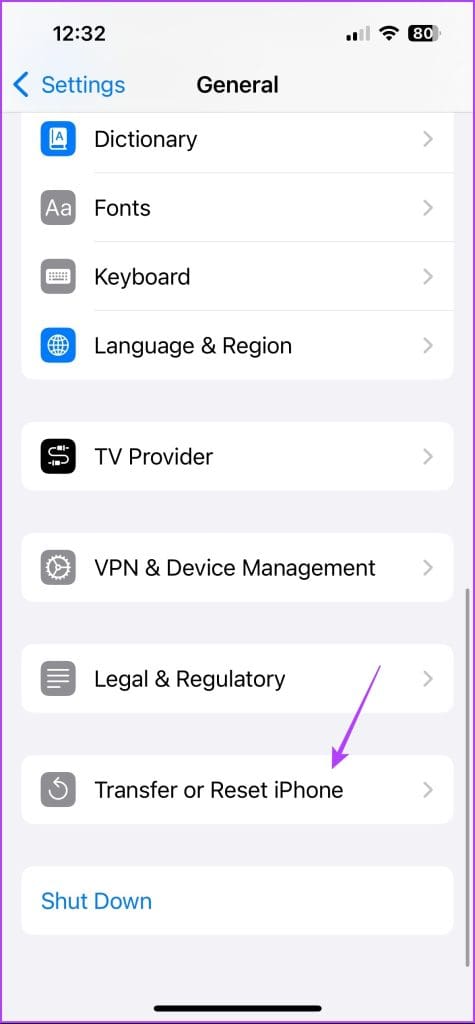
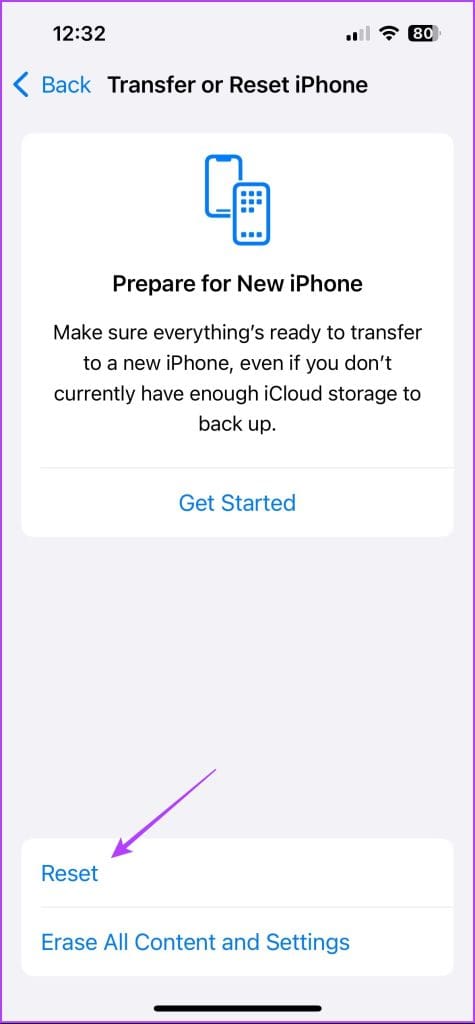
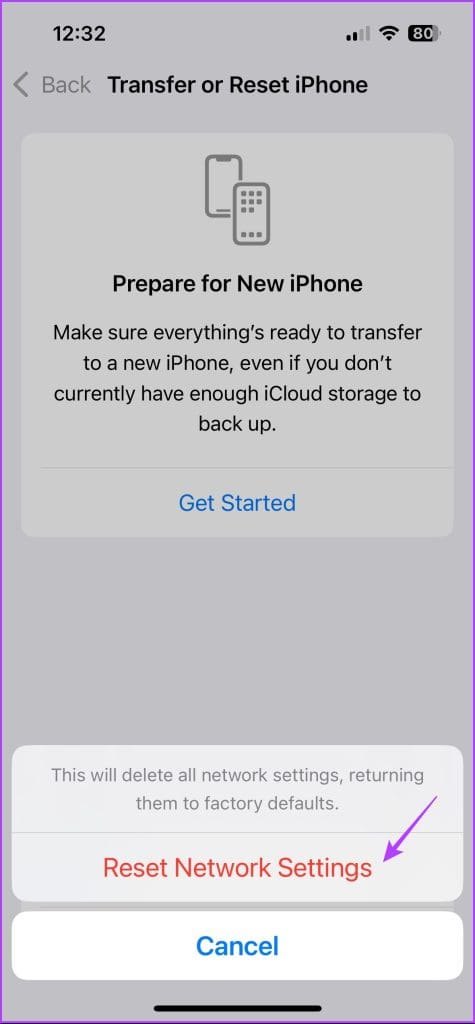
Step 3: Choose Reset > Reset Network Settings.
Step 4: Enter your device passcode and select Reset Network Settings again.

After that, connect to the network; you should no longer face the problem.